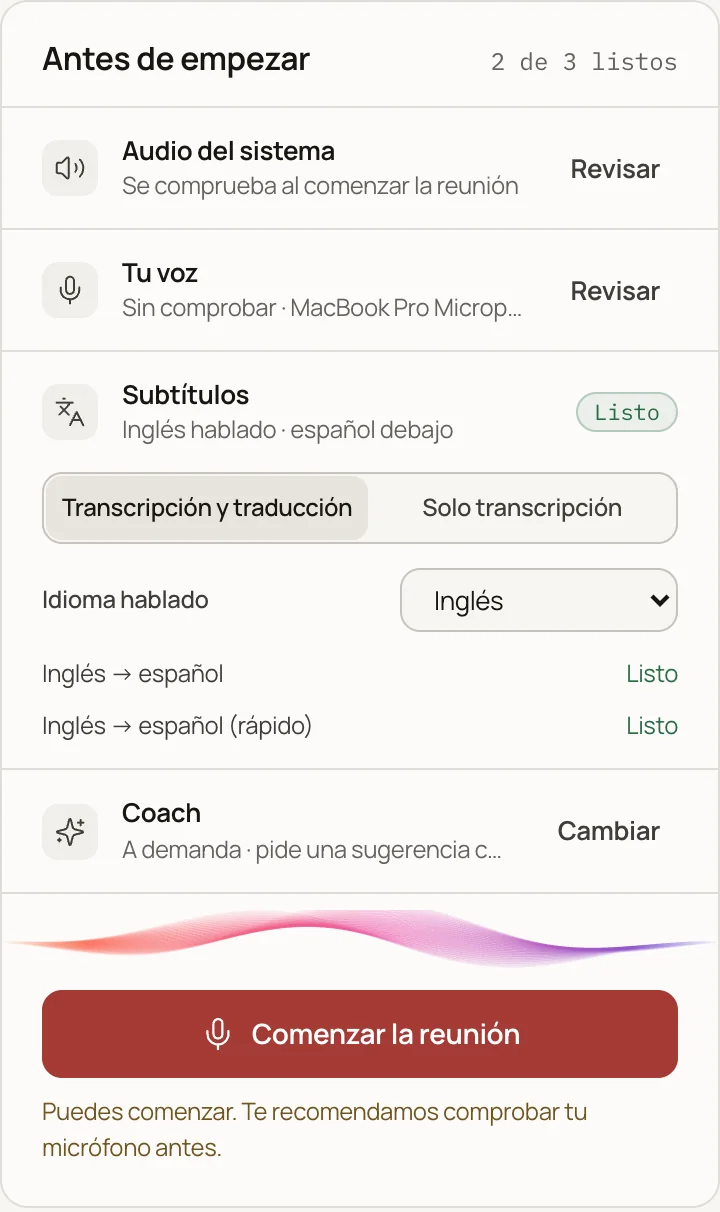
Before
Check the audio before you start.
Make sure the app hears the call and your voice, and choose whether you want translation.
Live Captions shows what people say in English translated to Spanish as they speak, or the other way around, over Zoom, Meet or Teams.
Beta 0.2.5 · macOS 13 or later · M1 chip or later · Using Windows?
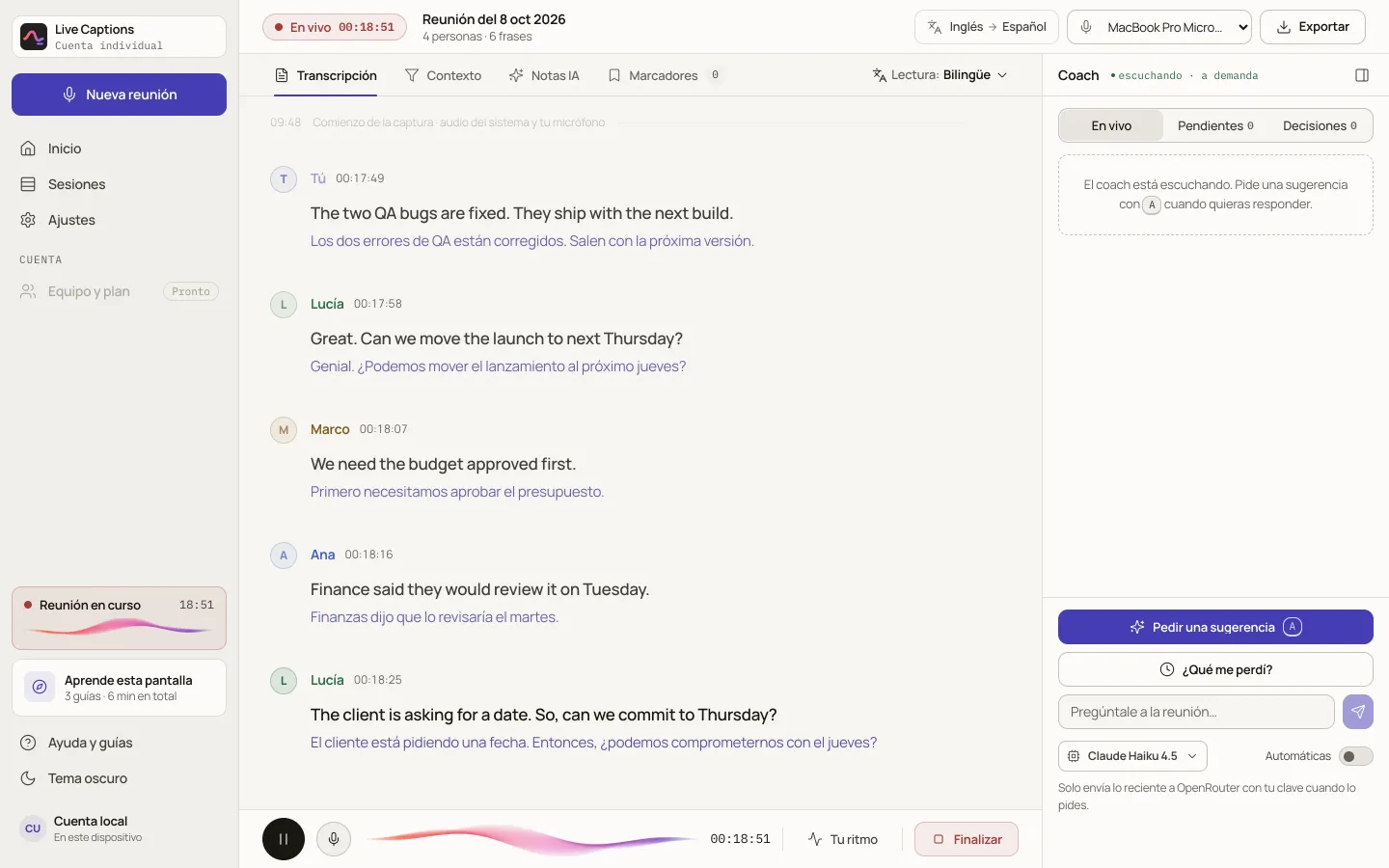
Example: every English sentence appears with its Spanish translation.
During the call
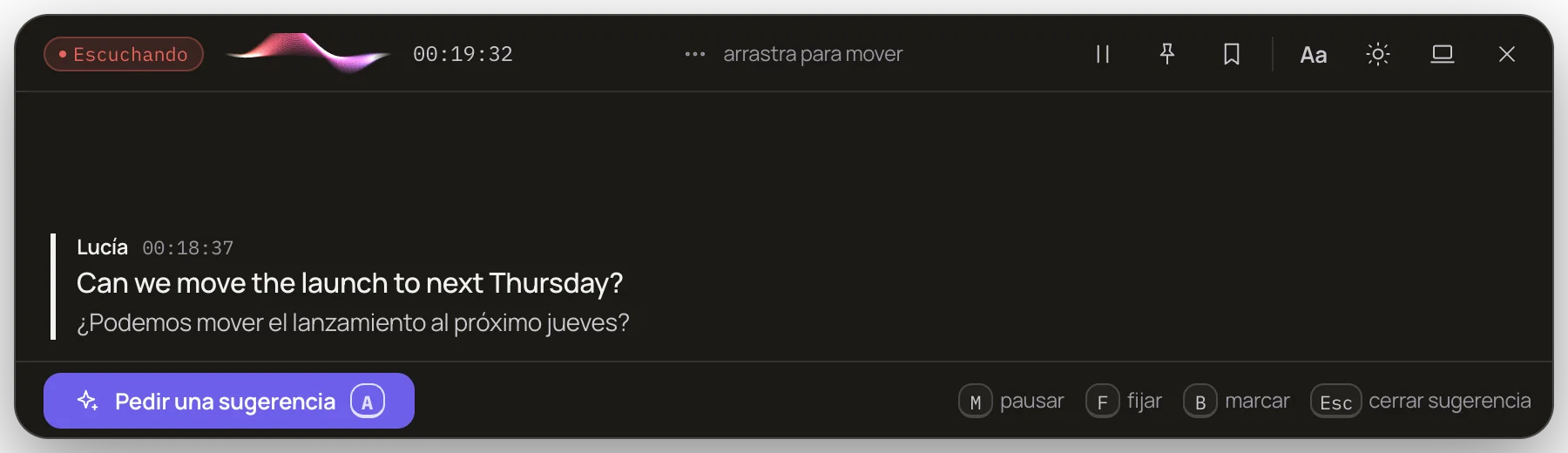
A caption strip floats above your video call. You place it where it covers no one and keep looking at the people, not at another window.
On Windows, Ctrl + Shift + O.
When you do not know what to say
Works with Claude. Haiku 4.5 by default; in Settings you can choose Sonnet or Opus.
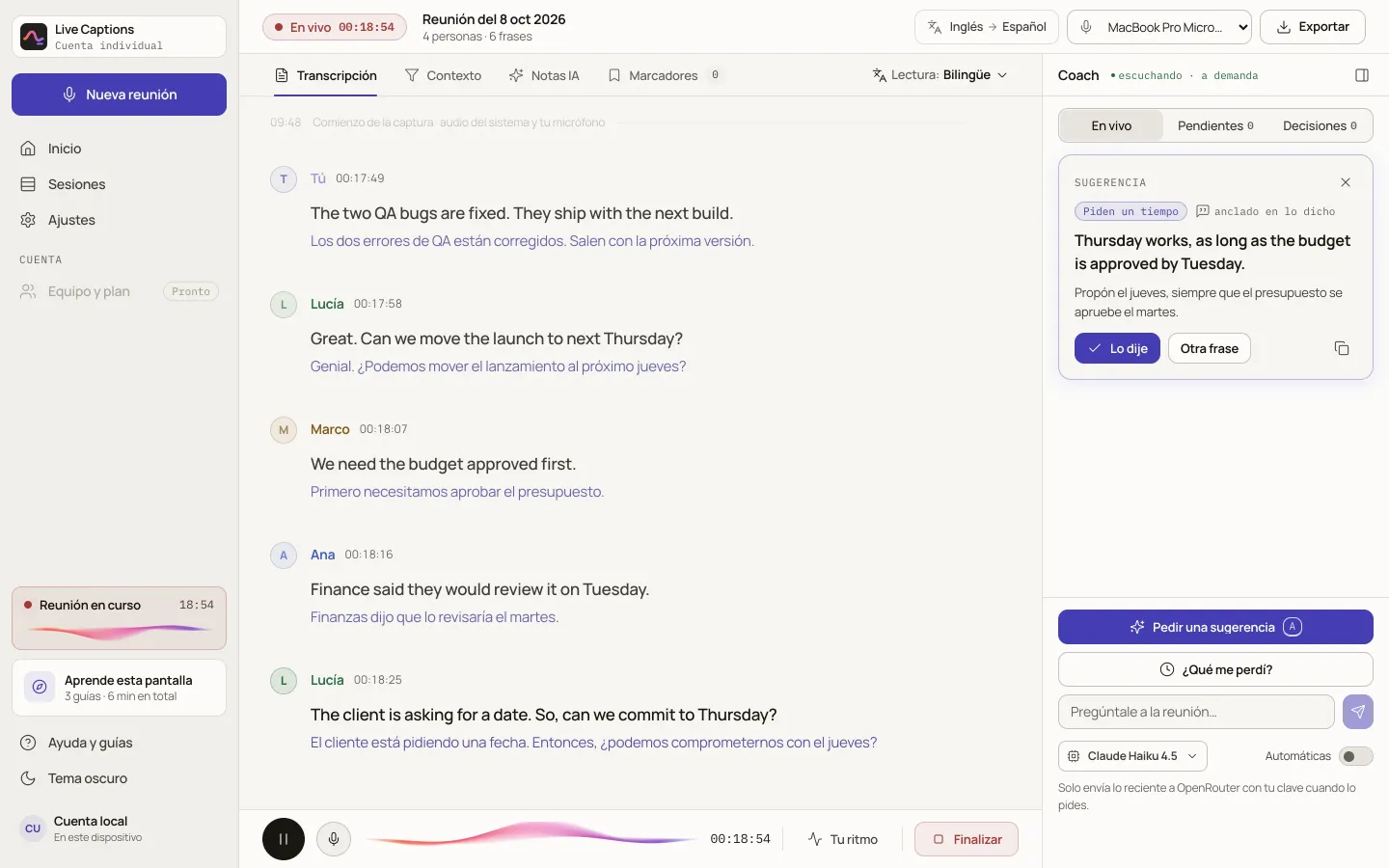
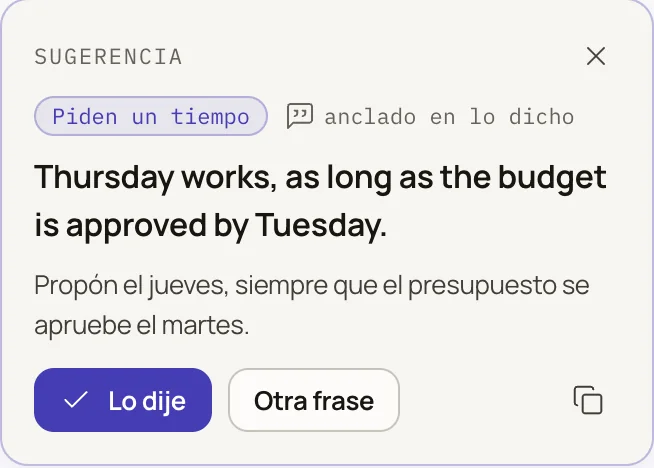
It replies to what was said
It reads the recent conversation and proposes a sentence in English, with a short explanation in Spanish. If the meeting is in Spanish, the other way around.
It does not make up figures
If a number was not said in the meeting, the coach does not use it in its suggestion.
It arrives with context
Before you start, paste your notes or the client’s email and the coach knows what it is about.
Before, during and after
Before
Make sure the app hears the call and your voice, and choose whether you want translation.
Before
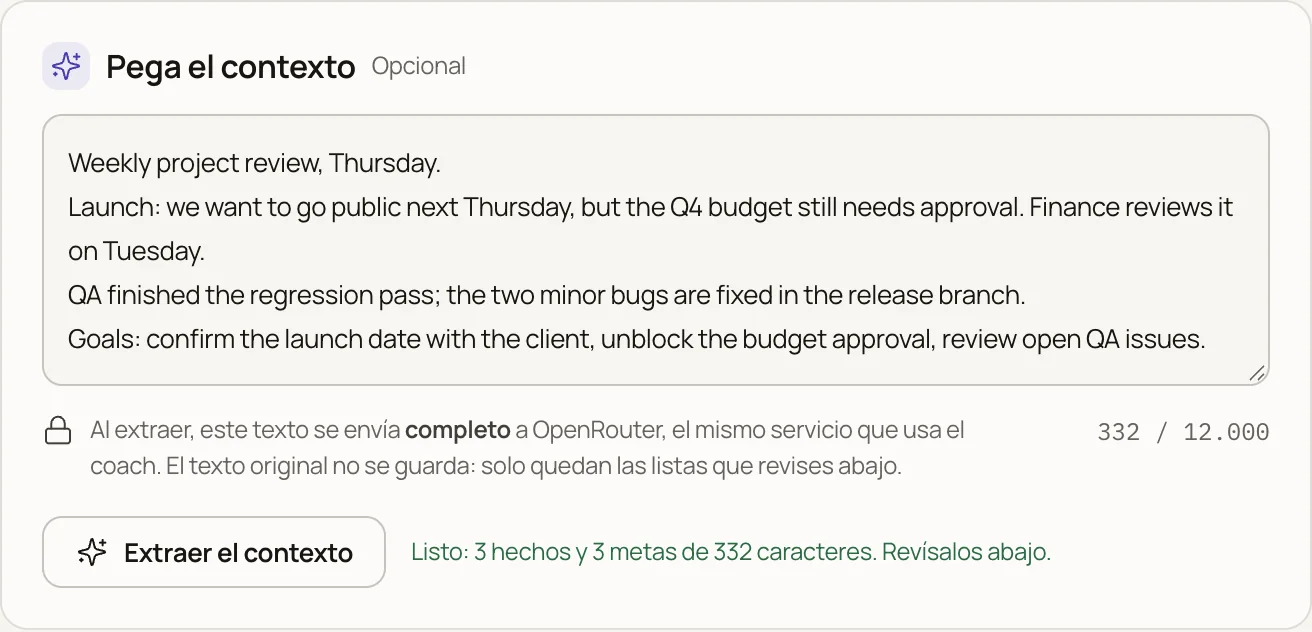
The client’s email or your brief becomes facts and goals that you review.
During
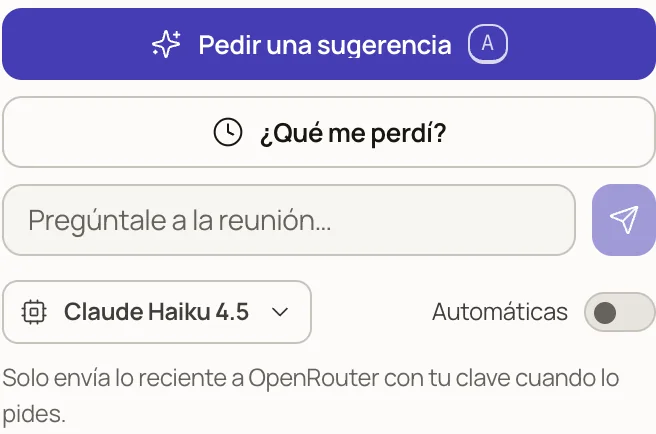
“What did I miss?” sums up the last thing that was said.
During
If a number was not said in the meeting, the coach does not use it in its suggestion.
It only uses figures that someone said out loud.
After
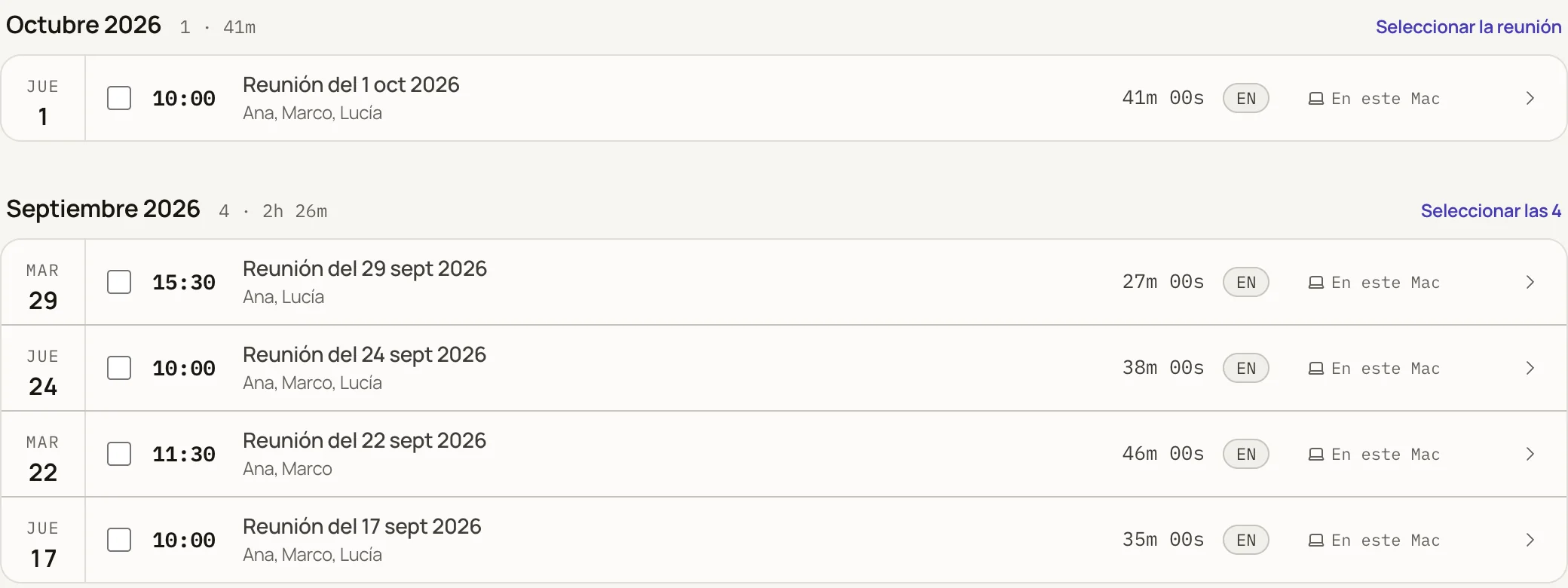
You can reread what was said, with the translation, and search by date, person or language.
Privacy
No fine print: these are all the ways out. Each one uses an account of yours, and you decide whether to turn on Deepgram and the cloud copy.
Your computer
This does not leave it
Cloud transcription
OptionalDeepgram
Only if you choose Deepgram and save your key, the meeting audio travels to Deepgram, a transcription service, using your own account.
Coach
Only if you askClaude, via OpenRouter
The recent conversation is sent, and only to providers that do not store what they receive.
Copy of your meetings
OptionalYour Live Captions account
To see them from another computer. If you delete a meeting, it is also deleted from the cloud.
In 50 seconds
A sample meeting, from start to finish. The names and the dialogue are made up.
It is in beta. You install it, create your account in the app and start. Captions do not need any key.
Your system shows a warning because it has not reviewed this app yet, not because it found anything. You give permission once.
1Drag it to Applications
Open the file you downloaded (it is in your Downloads folder) and drag Live Captions onto the Applications folder.
“Live Captions” Not Opened
Apple could not verify that “Live Captions” contains no malicious software…
2In the warning, click “Done”
Open Live Captions from Applications. Your Mac shows this warning: click the gray button. The blue one deletes the app. It does not open yet; step 3 is still left.
Privacy & Security
Security
Live Captions
3Give permission just once
From the Apple menu, open System Settings, go to Privacy & Security, scroll to the bottom of that screen and click “Open Anyway”. It asks for your Mac password.
When you open it, accept the audio and microphone permissions.
What you need
No key for the captions
Transcription and translation run on your computer, after a one-time download. A Deepgram key is optional.
An OpenRouter account, only for the coach
It gives the coach access to Claude. You create the account at openrouter.ai, copy your key and paste it in the app’s Settings.
Who charges you
During the beta, Live Captions does not charge you. OpenRouter charges you directly for what the coach uses, and Deepgram only if you choose to use it.
Notify me about new versions
The app updates itself. Optional: we email you when there is a new version. See privacy
Questions
No participant or bot joins the call. Live Captions listens to the audio already playing on your computer. If your company or your country requires notice when a meeting is transcribed, give notice anyway.